
Skip to content
May 1, 2026
  • Blog
  • Contact
  • My Recents Blogs
  • My Recents Blogs
  • My Recents Submit Guest Posts
  • Privacy Policy

My Recents

The Viral & Trending Blogs

cropped cropped my recents logo 1.jpg
Primary Menu
  • My Recent Blogs
  • Health Blogs
  • Education Blogs
  • Home Blogs
  • Business Blogs Ideas
  • Travel Blogs
  • Software Blogs
  • Technology Blogs
  • SEO Blogs
  • Life Blogs
  • Food Blogs
  • Lifestyle Blogs
  • Beauty Blogs
  • Insurance blogs
  • Beauty Tips Blogs
  • Mobile Apps Blogs
  • Banking Blogs
  • Social media Blogs
  • Home
  • Technology Blogs
  • Epson L3210 Printer Offline Issue: How to Fix Windows 10
  • Technology Blogs

Epson L3210 Printer Offline Issue: How to Fix Windows 10

Jonathan February 10, 2026 4 minutes read
Epson L3210 driver download

unnamed (26)

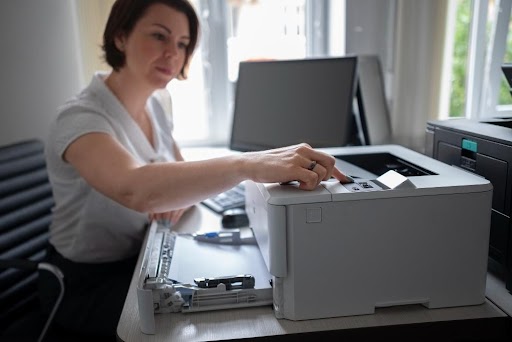
Epson printer is the most solid choice for those who have daily work of printing at a low cost. Be it a student, teacher, or company, it fits in all. It offers an all-in-one ink tank for printing, scanning, and more, with low-cost and high-quality results. But like other printers, Epson also raises some issues, such as offline status. Unexpected offline status affects scanning and printing. It slows down the workflow and productivity. Sometimes, the printer is connected but still shows offline.  In this blog, we will discuss some common reasons for printer’s offline status and methods to fix it.

Reasons for Showing Printer Offline

Given are possibly the reasons for the offline status of printers. 

  • If the printer is connected but says offline, it means a disconnection between hardware, software or network.
  • Basic connectivity is also a reason for appearing offline and connection to Wi-Fi or ethernet.
  • Environmental issues may be there. Sometimes, power fluctuations also cause the printer to appear offline.
  • The root cause of being offline is mostly a driver mismatch. Epson L3210 driver download can fix it.
  • Loose cables or disconnected wires.
  • Corrupted printer drivers or not updated/outdated printers.

Methods to Fix Printers

  1. Checking the status of the printer.

  • Open the menu by clicking on Start Button.
  • Open Settings.
  • Click on Devices.
  • Then click Printers and scanners, then Devices and printers given at the end of page.
  • Choose your printer and see its status. If it is showing Offline, right-click on it.
  • Choose option See whats printing.
  • A pop-up window shows some options, click on Printer and unselect Use Printer Offline.

2. Quick Fixes

  • Restart or reboot the printer as well as computer to clear hidden issues and driver conflicts.
  • Check the connection. Verify and restart your connections. Ensure your Wi-Fi or ethernet connection is connected and working properly.
  • Restart the printer and clear the print queue.
  • Download the latest version of your software and keep the driver up-to-date.

3. Update printer driver

  • Download and install the driver
  • Run the driver and perform a scan.
  • Scan will help in identifying issues.
  • Restart your computer and check if the printer is working properly.

4. Reinstall Epson printer

S1– Press Window Key and R for the Run Box.

S2– Type devmgmt.msc and click Enter to run.

S3– Find your Epson printer and right-click on it. Then tap on Uninstall.

S4- Again press Window Key and R for the Run box.

S5– Type control and click Enter.

S6- The Control panel will open, click Devices and Printers.

S7- Click on Add a printer.

S8– Select Add a network, wireless or bluetooth printer.

S9- Choose The printer that I want isn’t listed.

S10- Select Add a printer using a TCP/IP address or hostname and click Next.

S11- Fill out your printer’s IP address and Postname and click Next to complete installation.

S12- Restart the computer and start printing.

5. Troubleshooting

These are general troubleshooting steps given below:

S1. Restart your computer after unplugging.

S2. Connect the printer to the same Wi-Fi network as your device.

S3. Set your printer as a default printer.

  • Click Start
  • Choose Settings
  • Tap on Devices
  • Select Printers and scanners.
  • Select your printer and Open Queue
  • Click on Printer
  • Select as default printer.

S4. Check printer queue, under Document Name, select a document and click Cancel

S5. Remove and reinstall the printer to your device.

S6. Restart the device.

Prevention and Maintenance

To ensure constant performance, consider these points:

  • To perform scheduled reboots and routine driver updates. It ensures consistent connectivity.
  • To educate yourself about queue management, printer selection and network protocols for smooth operations and detecting risk.
  • Consistent reviews of firmware, drivers, and connectivity issues.
  • Document configuration that will help identify problems.

Printers often show problems while working. Don’t panic, just perform these given methods to fix. If it is still not working, get in touch with the technician. 

About The Author

Jonathan

See author's posts

Tags: Epson L3210 driver download

Post navigation

Previous: How Astrology Can Help You Find Your Perfect Life Partner?
Next: What Happens After Fixed Deposit Account Maturity?

Related Stories

Amazon PPC
  • Business
  • Digital Marketing Blogs
  • Technology Blogs

Top Amazon PPC Strategies to Outrank Competitors

sarose April 24, 2026
Low-Cost Home Tech Robots
  • Technology Blogs

Best Low-Cost Home Tech Robots for Advanced Living

sarose April 21, 2026
Microsoft Azure
  • Technology Blogs
  • Internet Blogs

How Microsoft Azure Helps Companies to Reduce Infrastructure Costs

sarose February 18, 2026
Moonstone Benefits
Health Blogs
Health Blogs

Moonstone Benefits: Enhance Emotional Balance and Holistic Health

myrecents
February 1, 2026 0
practical guide mental healthcare support system
popular mental health blogs Health Blogs

Taking Care of Your Mind: A Practical Guide to Mental Healthcare

sarose
January 28, 2026 0
Vagus Nerve Reset
Health Blogs
Health Blogs

The Vagus Nerve Reset: How Massage Flips the Switch from Anxiety to Calm

myrecents
January 15, 2026 0
Migraine Hat
Health Blogs
Health Blogs

Migraine Hat: A Practical Solution for Headache and Migraine Relief

Jonathan
January 9, 2026 0

Recent Blogs

ow to Handle Broken Signals and Missteps

Repairing Confidence at Work: How to Handle Broken Signals and Missteps

May 1, 2026
Best Research Strategies for College Assignments In 2026

Best Research Strategies for College Assignments In 2026

April 30, 2026
Clever Ways to Save Money When You’re Always on the Go

Clever Ways to Save Money When You’re Always on the Go 

April 30, 2026
experienced dimethylformamide suppliers India

Solvent Performance Under Extreme Conditions: How Dimethylformamide Suppliers in India Ensure Consistent Quality?

April 30, 2026
car top up loan interest rate

How to Negotiate a Lower Interest Rate on Your Car Top-Up Loan

April 29, 2026
hyundai petrol cars

Hyundai Cars Price List 2026: Mileage, Features & On-Road Price Comparison

April 29, 2026
bright wall light

My Staircase Was a Nightmare Until This Bright Wall Light Arrived

April 29, 2026
Amazon PPC

Top Amazon PPC Strategies to Outrank Competitors

April 24, 2026
popular tags
  • India Himalayas trek
  • SEO Benefits
  • Travel India
  • Adani Group
  • SEO tips and tricks
  • Adani Group controversies
  • adani scam
  • custom boxes
  • Health
  • Erectile dysfunction health

You may have missed

ow to Handle Broken Signals and Missteps
  • Business

Repairing Confidence at Work: How to Handle Broken Signals and Missteps

myrecents May 1, 2026
Best Research Strategies for College Assignments In 2026
  • My Recent Blogs

Best Research Strategies for College Assignments In 2026

myrecents April 30, 2026
Clever Ways to Save Money When You’re Always on the Go
  • Life Blogs

Clever Ways to Save Money When You’re Always on the Go 

myrecents April 30, 2026
experienced dimethylformamide suppliers India
  • Business

Solvent Performance Under Extreme Conditions: How Dimethylformamide Suppliers in India Ensure Consistent Quality?

Jonathan April 30, 2026

  • My Recents Blogs
  • Blog
  • My Recents Submit Guest Posts
  • Privacy Policy
  • Contact
Copyright © All rights reserved. | MoreNews by AF themes.