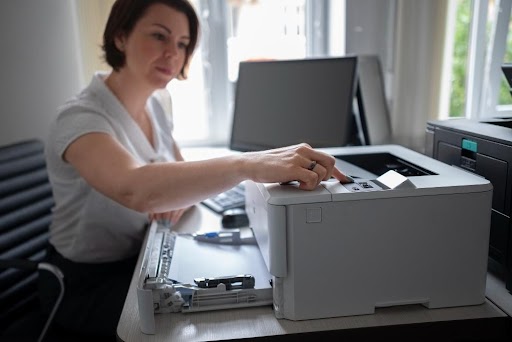
Epson printer is the most solid choice for those who have daily work of printing at a low cost. Be it a student, teacher, or company, it fits in all. It offers an all-in-one ink tank for printing, scanning, and more, with low-cost and high-quality results. But like other printers, Epson also raises some issues, such as offline status. Unexpected offline status affects scanning and printing. It slows down the workflow and productivity. Sometimes, the printer is connected but still shows offline. In this blog, we will discuss some common reasons for printer’s offline status and methods to fix it.
Reasons for Showing Printer Offline
Given are possibly the reasons for the offline status of printers.
- If the printer is connected but says offline, it means a disconnection between hardware, software or network.
- Basic connectivity is also a reason for appearing offline and connection to Wi-Fi or ethernet.
- Environmental issues may be there. Sometimes, power fluctuations also cause the printer to appear offline.
- The root cause of being offline is mostly a driver mismatch. Epson L3210 driver download can fix it.
- Loose cables or disconnected wires.
- Corrupted printer drivers or not updated/outdated printers.
Methods to Fix Printers
-
Checking the status of the printer.
- Open the menu by clicking on Start Button.
- Open Settings.
- Click on Devices.
- Then click Printers and scanners, then Devices and printers given at the end of page.
- Choose your printer and see its status. If it is showing Offline, right-click on it.
- Choose option See whats printing.
- A pop-up window shows some options, click on Printer and unselect Use Printer Offline.
2. Quick Fixes
- Restart or reboot the printer as well as computer to clear hidden issues and driver conflicts.
- Check the connection. Verify and restart your connections. Ensure your Wi-Fi or ethernet connection is connected and working properly.
- Restart the printer and clear the print queue.
- Download the latest version of your software and keep the driver up-to-date.
3. Update printer driver
- Download and install the driver
- Run the driver and perform a scan.
- Scan will help in identifying issues.
- Restart your computer and check if the printer is working properly.
4. Reinstall Epson printer
S1– Press Window Key and R for the Run Box.
S2– Type devmgmt.msc and click Enter to run.
S3– Find your Epson printer and right-click on it. Then tap on Uninstall.
S4- Again press Window Key and R for the Run box.
S5– Type control and click Enter.
S6- The Control panel will open, click Devices and Printers.
S7- Click on Add a printer.
S8– Select Add a network, wireless or bluetooth printer.
S9- Choose The printer that I want isn’t listed.
S10- Select Add a printer using a TCP/IP address or hostname and click Next.
S11- Fill out your printer’s IP address and Postname and click Next to complete installation.
S12- Restart the computer and start printing.
5. Troubleshooting
These are general troubleshooting steps given below:
S1. Restart your computer after unplugging.
S2. Connect the printer to the same Wi-Fi network as your device.
S3. Set your printer as a default printer.
- Click Start
- Choose Settings
- Tap on Devices
- Select Printers and scanners.
- Select your printer and Open Queue
- Click on Printer
- Select as default printer.
S4. Check printer queue, under Document Name, select a document and click Cancel
S5. Remove and reinstall the printer to your device.
S6. Restart the device.
Prevention and Maintenance
To ensure constant performance, consider these points:
- To perform scheduled reboots and routine driver updates. It ensures consistent connectivity.
- To educate yourself about queue management, printer selection and network protocols for smooth operations and detecting risk.
- Consistent reviews of firmware, drivers, and connectivity issues.
- Document configuration that will help identify problems.
Printers often show problems while working. Don’t panic, just perform these given methods to fix. If it is still not working, get in touch with the technician.